
Website How-To
How to Use Your Arizona DJ Connection Client Planning Workspace
A step-by-step guide for invited clients to use their private Arizona DJ Connection workspace for event details, questionnaires, timeline, music lists, and final approval.
By Arizona DJ Connection · October 23, 2026
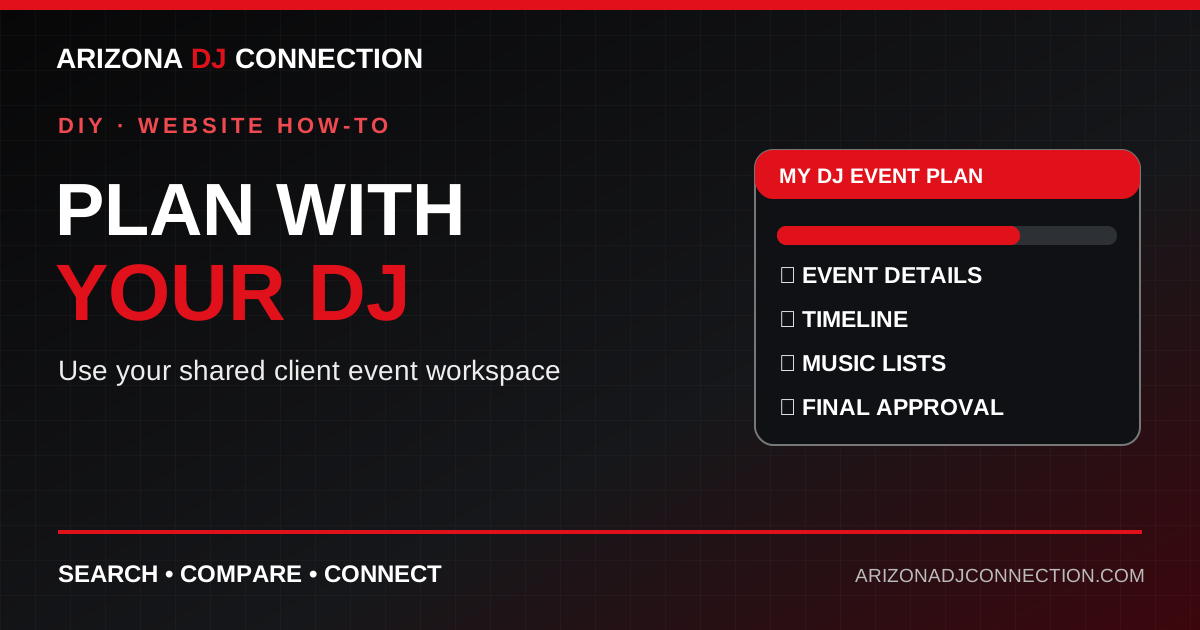
Once you have connected with a DJ, planning should not mean chasing song lists, schedules, and last-minute details across dozens of texts.
Arizona DJ Connection offers a private shared event workspace that lets a DJ company and its invited client organize the event details, planning questionnaire, timeline, music choices, and final approval in one place.
This guide explains the actual workflow, what information to prepare, and how to avoid the most common handoff problems.
Before You Begin: You Need an Invitation
The client workspace is not an open public planning page. Your DJ must first create a workspace and invite you using your email address.
If you have not received an invitation, ask your DJ to confirm which email address they entered and to resend the private invitation if necessary.
Do not create a second account with a different email just to try to find the event. The invitation and account need to match.
Step 1: Open the Private Invitation
Open the invitation sent by your DJ.
If you already have an Arizona DJ Connection account, sign in with the same email address used for the invitation.
If you are new to the site, create a free account with that email, complete any required email confirmation, and follow the invitation.
After the connection is accepted, your event should appear under My DJ Events.
If the page says no events are connected, return to the invitation and verify that you used the invited email address.
Step 2: Find Your Event in My DJ Events
Open My DJ Events while signed in.
Each connected event is shown with its event name, date when available, DJ company, and planning or approval status.
Choose the correct event to open its shared workspace.
The page is private. It is intended for the invited client and the authorized DJ company, not for public browsing.
Step 3: Confirm the Event Details
Start with the Event Details section.
Check the event name, type, date, guest count, venue, and city.
This sounds basic, but a wrong date or venue name can affect equipment planning, travel, and the schedule.
If information is missing or incorrect, update it and save. If the venue has changed, tell the DJ directly as well—do not assume a changed form replaces a time-sensitive conversation.
Step 4: Complete the Event-Specific Questionnaire
The Event-Specific Intake Questionnaire adjusts the questions to the kind of event being planned.
A wedding may need ceremony and reception information. A quinceañera may involve court introductions, traditions, a waltz, or surprise dances. A corporate event may focus on presentations, microphones, and MC responsibilities.
Answer the questions you know now. For details that are not final, use clear notes such as “awaiting venue confirmation” instead of guessing.
Your DJ can also complete the questionnaire during a consultation, so you do not have to work through every detail alone.
Step 5: Fill Out the DJ Planning Form
The DJ Planning Form covers the overall experience and practical instructions.
Useful sections include:
- The atmosphere you want.
- Music styles and guest mix.
- Ceremony plans, if applicable.
- Special dances and introductions.
- Announcements and formalities.
- Names and phonetic pronunciations.
- Do-not-play guidance and guest-request rules.
- DJ attire.
- Setup, power, and venue access notes.
- Event-day contacts.
Give specific examples. “Fun but not too loud during dinner” is more useful than “good music.” “Introduce María as mah-REE-ah” is more useful than hoping the DJ knows the pronunciation.
Save the form after editing.
Step 6: Build the Shared Timeline
Use the Event Timeline section to add activities.
Each item can include a start time, optional end time, title, responsible person, and notes.
For example:
6:00 PM — Grand entrance
Responsible: DJ and planner
Notes: Confirm the wedding party is lined up before starting.
6:20 PM — Dinner begins
Responsible: Caterer
Notes: Background music at conversation level.
7:45 PM — Formal dances
Responsible: DJ and photographer
Notes: Photographer confirms readiness before the first cue.
You do not need to plan every minute. Focus on moments that require coordination.
After adding items, review their order and remove outdated entries so there is one clear working schedule.
Step 7: Build Your Music Lists
The Music Planner lets you search for songs where the catalog tool is available or enter a song manually.
Each entry can include the title, artist, notes, and the part of the event where it belongs, such as ceremony, cocktail hour, dinner, special dance, or open dancing.
Choose one of three preferences:
- Must play: Important songs or moments the DJ should plan around.
- Play if possible: Favorites that can fit if the timing and crowd response allow.
- Do not play: Songs or artists you want excluded.
A short, carefully prioritized list is often more useful than a huge list with no ranking.
For special dances, confirm the exact recording, edit, and start point with the DJ. A title alone may not identify the version you expect.
Step 8: Review Names, Cues, and Contacts
Before approval, read the plan as if you were the DJ seeing it for the first time.
Can you tell:
- Who is being introduced?
- How each name is pronounced?
- Which song belongs to each formal moment?
- Who gives the signal to start?
- Who can approve schedule changes?
- Who should be called if something changes on event day?
If a detail is only in someone's text messages, add the relevant information to the workspace.
Step 9: Approve the Final Plan
When the details, planning answers, timeline, and music selections are ready, the client can use Approve This Event Plan in the final approval section.
Approval confirms the current version of the shared plan. It does not replace the DJ company's contract, payment requirements, or booking confirmation.
Important: Later changes to the shared planning information can reopen the plan for review. If you edit the plan after approving it, return to the approval section and confirm the updated version again.
Step 10: Keep Communicating About Urgent Changes
The workspace helps everyone stay organized, but it should not be your only communication method for urgent matters.
Call or message your DJ directly about a last-minute venue change, weather issue, schedule disruption, cancellation, or major change in guest count.
Then update the workspace so the written plan matches the conversation.
Quick Troubleshooting
I cannot see my event.
Make sure you are signed in with the email address that received the invitation. Reopen the private invitation. Ask the DJ to verify the invited email if the event is still missing.
I see an older version of the plan.
Refresh the page, confirm you opened the correct event, and check whether your most recent changes were saved.
I cannot find a particular song.
Enter it manually with the correct title and artist. Add a note or external reference if the version matters.
My approval disappeared.
A subsequent edit may have reopened the plan. Review the changes and approve the updated version.
My DJ has information I cannot see.
DJ companies can maintain private operational notes. The client view focuses on the shared planning information.
Make the Workspace Your Single Working Plan
A good shared plan saves time because the DJ, client, and event team can work from consistent information.
Start with accurate details, complete the questionnaire, prioritize your music, add important timeline moments, and review everything before final approval.
When your DJ has invited you, open My DJ Events to continue planning. If you are still researching DJs, start with the Arizona DJ Connection DJ Matchmaker.
Plan together. Keep the details clear. Enjoy the event.